The following code snippet allows to manipulate the system tray by adding your apps icon when you minimize the form and restore when you double click on the app's icon on the system tray area.
Option Explicit

Public Type NOTIFYICONDATA
    cbSize As Long
    hWnd As Long
    uId As Long
    uFlags As Long
    uCallBackMessage As Long
    hIcon As Long
    szTip As String * 64
End Type

Public Const NIM_ADD = &H0
Public Const NIM_MODIFY = &H1
Public Const NIM_DELETE = &H2
Public Const WM_MOUSEMOVE = &H200
Public Const NIF_MESSAGE = &H1
Public Const NIF_ICON = &H2
Public Const NIF_TIP = &H4
Public Const WM_LBUTTONDBLCLK = &H203 'Double-click
Public Const WM_LBUTTONDOWN = &H201 'Button down
Public Const WM_LBUTTONUP = &H202 'Button up
Public Const WM_RBUTTONDBLCLK = &H206 'Double-click
Public Const WM_RBUTTONDOWN = &H204 'Button down
Public Const WM_RBUTTONUP = &H205 'Button up
Public Declare Function Shell_NotifyIcon Lib "shell32" Alias "Shell_NotifyIconA" (ByVal dwMessage As Long, pnid As NOTIFYICONDATA) As Boolean

'Dimension a variable as the user-defined data type.
Dim nid As NOTIFYICONDATA
This sub sends the icon to system tray.
Sub minToTray()
    '------------------------
    '--- create tray icon ---
    '------------------------

    nid.cbSize = Len(nid)
    nid.hWnd = Me.hWnd
    nid.uId = vbNull
    nid.uFlags = NIF_ICON Or NIF_TIP Or NIF_MESSAGE
    nid.uCallBackMessage = WM_MOUSEMOVE
    nid.hIcon = Main.Icon  'the icon will be your Form1 project icon
    nid.szTip = TrayName   'tip text

    'adds the icon to the taskbar area
    Shell_NotifyIcon NIM_ADD, nid

End Sub

'This is Tip text when hovering on the system tray icon
Function TrayName() as String
    TrayName = App.EXEName & " Ver." & App.Major & "." & App.Minor & vbCrLf & App.CompanyName & vbNullChar
End Function
When the minimize button is clicked it will hide the form and send icon to system tray.
Private Sub imgMin_Click()
    'Hides main form and shows mini mode
    Me.Hide
    minToTray   'send icon to system tray
End Sub
When the app icon on the system tray is doubled click it will show the form and delete the icon from the system tray.
Private Sub Form_MouseMove(Button As Integer, Shift As Integer, x As Single, y As Single) Dim Msg As Long Dim sFilter As String Msg = x / Screen.TwipsPerPixelX
Select Case Msg Case WM_LBUTTONDOWN Case WM_LBUTTONUP Case WM_LBUTTONDBLCLK Me.Show Me.WindowState = vbNormal
'Deletes the tray icon when the form is shown Shell_NotifyIcon NIM_DELETE, nid ' del tray icon Case WM_RBUTTONDOWN 'Show popup menu PopupMenu mExit Case WM_RBUTTONUP Case WM_RBUTTONDBLCLK End Select
The following code snippets allows to set Windows Form Always on Top of Other applications in Visual Basic 6.0.
Public Const SWP_NOMOVE = 2
Public Const SWP_NOSIZE = 1
Public Const FLAGS = SWP_NOMOVE Or SWP_NOSIZE
Public Const HWND_TOPMOST = -1
Public Const HWND_NOTOPMOST = -2

Declare Function SetWindowPos Lib "user32" _
      (ByVal hWnd As Long, _
      ByVal hWndInsertAfter As Long, _
      ByVal x As Long, _
      ByVal y As Long, _
      ByVal cx As Long, _
      ByVal cy As Long, _
      ByVal wFlags As Long) As Long
The following SetTopMostWindow() function takes two parameters as follows: hWnd: the window handle Topmost: It is either True to set the on top or False if Not.
Public Function SetTopMostWindow(hWnd As Long, Topmost As Boolean) As Long

   If Topmost = True Then 'Make the window topmost
      SetTopMostWindow = SetWindowPos(hWnd, HWND_TOPMOST, 0, 0, 0, 0, FLAGS)
   Else
      SetTopMostWindow = SetWindowPos(hWnd, HWND_NOTOPMOST, 0, 0, 0, 0, FLAGS)
      SetTopMostWindow = False
   End If
End Function
The following Sub sets the form frmMini on Top of any other applications.
Private Sub Form_Load()
Dim lR As Long
lR = SetTopMostWindow(frmMini.hWnd, True)
End Sub
Private Declare Function SetLayeredWindowAttributes Lib "user32" (ByVal hWnd As Long, ByVal color As Long, ByVal x As Byte, ByVal alpha As Long) As Boolean Private Declare Function SetWindowLong Lib "user32" Alias "SetWindowLongA" (ByVal hWnd As Long, ByVal nIndex As Long, ByVal dwNewLong As Long) As Long Private Declare Function GetWindowLong Lib "user32" Alias "GetWindowLongA" (ByVal hWnd As Long, ByVal nIndex As Long) As Long Private Declare Function WindowFromPoint Lib "user32" (ByVal xPoint As Long, ByVal yPoint As Long) As Long Private Declare Function GetCursorPos Lib "user32" (lpPoint As POINTAPI) As Long
Type POINTAPI x As Long y As Long End Type
Private pPoint As POINTAPI Private hMouseOverWnd As Long Public Trans As Integer
Public Function SetTrans(hWnd As Long, Trans As Integer)
Dim Tcall As Long
If Trans <= 0 Then Exit Function Else Tcall = GetWindowLong(hWnd, GWL_EXSTYLE) SetWindowLong hWnd, GWL_EXSTYLE, Tcall Or WS_EX_LAYERED SetLayeredWindowAttributes hWnd, RGB(255, 255, 0), Trans, LWA_ALPHA End If
End Function
To apply the transparency, you can call the SetTrans() function on Form_Load() event of the form you want to be transparent. [Form Code]
Private Sub Form_Load()
SetTrans frmMain.hWnd, 220
End Sub
In this example shows only a simple form that saves and retrieves value from the CONFIG.INI file.
After reading this, you can use your own creativity on how you're going to implement this on your project.
To start with, On your Form add the following controls and arrange them according to the image above. (1)TextBox - Change the Name property to "txtSetting" (2)Command Button - Change the Caption and Name Properties to the following: Save: Change the Name property to "cmdSave" Retrieve: Change the Name property to "cmdRetrieve" (5)Label - For the two labels we'll be using to retrieve the values. Remove the default caption and change the Name Properties to lblName and lblTime. Now, Copy the Form Codes below and Paste on the Form1 code window of your VB6 Project. Form Codes:
Option Explicit
Dim ConfigFile As String
Private Sub cmdRetrieve_Click() 'Set the Configuration File Name ConfigFile = App.Path & "\CONFIG.INI"
Private Sub cmdSave_Click() 'Set the Configuration File Name ConfigFile = App.Path & "\CONFIG.INI"
'Check for empty values If txtSetting.Text = "" Then MsgBox "Please type your name on the textbox provided.", vbCritical, "Settings" txtSetting.SetFocus Exit Sub End If
'Put the name and the time into the config file PutINISetting "USER", "NAME", txtSetting.Text, ConfigFile PutINISetting "USER", "TIME", Format(Now, "yyyy-mm-dd hh:mm:ss AMPM"), ConfigFile
MsgBox "Settings have been saved.", vbInformation, "Settings"
End Sub
You can save copy and paste the following code in a standard module and save it as settings.bas or give it a name of your own. The WritePrivateProfileSetting API Function creates the Configuration file name if it doesn't exists.
Module (settings.bas)
Option Explicit

'API Function to read information from INI File
Public Declare Function GetPrivateProfileString Lib "kernel32" _
    Alias "GetPrivateProfileStringA" (ByVal lpApplicationName As String, _
    ByVal lpKeyName As Any, _
    ByVal lpDefault As String, _
    ByVal lpReturnedString As String, _
    ByVal nSize As Long, _
    ByVal lpFileName As String) As Long

'API Function to write information to the INI File
Private Declare Function WritePrivateProfileString Lib "kernel32" _
    Alias "WritePrivateProfileStringA" (ByVal lpApplicationName As String, _
    ByVal lpKeyName As Any, _
    ByVal lpString As Any, _
    ByVal lpFileName As String) As Long

'Get the INI Setting from the File
Public Function GetINISetting(ByVal sHeading As String, _
    ByVal sKey As String, _
    sINIFileName) As String

    Const cparmLen = 50
    Dim sReturn As String * cparmLen
    Dim sDefault As String * cparmLen
    Dim lLength As Long
    lLength = GetPrivateProfileString(sHeading, _
            sKey, _
            sDefault, _
            sReturn, _
            cparmLen, _
            sINIFileName)

    GetINISetting = Mid(sReturn, 1, lLength)
End Function

'Save INI Setting in the File
Public Function PutINISetting(ByVal sHeading As String, _
    ByVal sKey As String, _
    ByVal sSetting As String, _
    sINIFileName) As Boolean

    Const cparmLen = 50
    Dim sReturn As String * cparmLen
    Dim sDefault As String * cparmLen
    Dim aLength As Long
    aLength = WritePrivateProfileString(sHeading, _
        sKey, _
        sSetting, _
        sINIFileName)

    PutINISetting = True
End Function
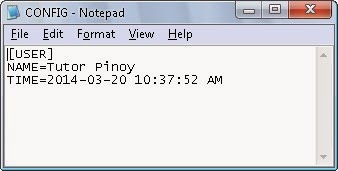
This will be how the configuration file looks like if we open it with a text editor.
This is a quick guide for beginners on how to add Menu, Sub-Menu and Menu Separator at Design Time in VB6 Project.
To do this, Open up your Microsoft Visual Basic and start a New Standard EXE Project that will automatically create a form named Form1.
Just follow the steps below or download the example here.
1.) First, right click on form then choose Menu Editor or Press Ctrl+E. 2.) On the Menu Editor, add a Main Menu Caption like "File" and give it a name like "nFile" then click Next. 3.) Click the right arrow button to add a menu under the main menu "File". 4.) Now create the First Level Menu and give it a Caption like "Record" and a name like "mRecord". 5.) Now to create a Sub-Menu for the menu Record, click the next button and the arrow button. As you can see in the list below that it is nested.
Note: You can use the arrows to move your menus up, down, left or right.
6.) Now to create the Menu Separator, just click next and give a Caption "-" and a name "mSep".
The following codes allows you to drag or move a border-less Form or Control in Visual Basic 6. This also works on other controls like Label, Image or Picture Box. You can also move or drag a control inside a form.
Copy and Paste the code below in a Standard Module.
 Declare Function SendMessage Lib "user32" Alias "SendMessageA" (ByVal hWnd As Long, ByVal wMsg As Long, ByVal wParam As Long, lParam As Any) As Long
 Declare Sub ReleaseCapture Lib "user32" ()
 Public Const WM_NCLBUTTONDOWN = &HA1
 Public Const HTCAPTION = 2
Then Copy and Paste the code below on a Form or Controls MouseDown Event.
 Private Sub Form_MouseDown(Button As Integer, Shift As Integer, x As Single, y As Single)
     Dim ReturnValue As Long
     If Button = 1 Then
     Call ReleaseCapture
     ReturnValue = SendMessage(Me.hWnd, WM_NCLBUTTONDOWN, HTCAPTION, 0&)
     End If
 End Sub
You should be able to move the form by holding the mouse button then drag.
This application allows you get the equivalent KeyAscii Value for every key you'll press on your keyboard.
Just click on the "Change Me!" and start pressing any key on your keyboard. The Character Box will display the key you just pressed. And the ASCII Code box will display the keyascii value of the key you pressed.
This article will guide you through on how to enable Mouse Wheel Scrolling in VB6.
1. You need to download the Microsoft's VB6 Mouse Wheel Addin. 2. Run the Self-Cabinet Extractor and Unzip the necessary files. You may change the destination to accessible location "C:\vb6mwfix".
3. Open "Run", copy and paste this code "xcopy C:\vb6mwfix\VB6IDEMouseWheelAddin.dll %windir%\system32\VB6IDEMouseWheelAddin.dll" without "qoutes". 4. Press "F" to confirm the destination as file. 5. Open "Run", copy and paste this code "regsvr32 %windir%\system32\VB6IDEMouseWheelAddin.dll" without "qoutes" to register the add-in. 6. Open the "VBA Mouse Wheel Fix.reg" located on the folder where you extract the files to add the addin information in the registry. 7. Start your Microsoft Visual Basic 6.0. 8. Open Add-Ins Manager.
9. Select "MouseWheelFix" in the available Add-Ins and check "Loaded/Unloaded" and "Load on Startup" on the load behavior.
10. Restart Microsoft Visual Basic 6.0 in order the changes to take effect.
Maintaining an application on top of other applications, regardless if they were present on the screen or are called later is.
VB6: Maintaining an application over the others * In a general module * In the opening form * Calling the function * Removing priority
Copy and paste this in a General Module.
Public Declare Function SetWindowPos Lib "user32" (ByVal hwnd As Long, ByVal_

    hWndInsertAfter As Long, ByVal x As Long, ByVal y As Long, ByVal cx As _

    Long, ByVal cy As Long, ByVal wFlags As Long) As Long


Public Const HWND_TOPMOST = -1
Public Const HWND_NOTOPMOST = -2
Public Const SWP_NOACTIVATE = &H10
Public Const SWP_SHOWWINDOW = &H40
Public Const SWP_NOMOVE = 2
Public Const SWP_NOSIZE = 1
Put this in your form.
Private Sub Form_Load()

    Dim R as long

    R = SetWindowPos(SheetName.hwnd, HWND_TOPMOST, 0, 0, 0, 0, SWP_NOMOVE Or SWP_NOSIZE)

End sub
Calling the function The function must be put in the activation of the form, which will allow to resume this function if the form is selected (as the function may be used by other application).
Private Sub Form_Activate()

    Dim R as long

    R = SetWindowPos(SheetName.hwnd, HWND_TOPMOST, 0, 0, 0, 0, SWP_NOMOVE Or SWP_NOSIZE)

End sub
Removing priority
Private sub SuppPriority()
Dim R as long
R= SetWindowPos(NomFeuille.hwnd, HWND_NOTOPMOST, 0, 0, 0, 0, SWP_NOMOVE Or SWP_NOSIZE)
The following routines demonstrates how to compact a JET database using ADO:
Option Explicit

'Purpose     :  Compact a JET (Access) database using ADO
'Inputs      :  sDatabasePath                   The path to the database path eg. C:\nwind.mdb
'               [bEncryptDatabase]              If True, encrypts the contents of the database
'Outputs     :  Returns zero if successful, else returns error code
'Notes       :  Requires "Microsoft Jet and Replication Objects X.X library",
'               where (X.X is greater than or equal to 2.1)
'               Compacts the database by creating a temporary database with the extension .tmp then,
'               if the compaction is successful, it overwrites the original database.
'               Will not work if anyone else is connected to the database.
'Revisions   :
'Assumptions :

Function DatabaseCompact(sDatabasePath As String, Optional bEncryptDatabase As Boolean = False) As Long
    Dim oJRO As Object 'JRO.JetEngine

    On Error GoTo ErrFailed

    If Len(Dir$(sDatabasePath & ".tmp")) Then
        'Delete the existing temp database
        VBA.Kill sDatabasePath & ".tmp"
    End If

    Set oJRO = CreateObject("JRO.JetEngine")

    If bEncryptDatabase Then
        'Compact and encrypt the database
        oJRO.CompactDatabase "Provider=Microsoft.Jet.OLEDB.4.0;Data Source=" & sDatabasePath, "Provider=Microsoft.Jet.OLEDB.4.0;Data Source=" & sDatabasePath & ".tmp;Jet OLEDB:Encrypt Database=True"
    Else
        'Compact the database
        oJRO.CompactDatabase "Provider=Microsoft.Jet.OLEDB.4.0;Data Source=" & sDatabasePath, "Provider=Microsoft.Jet.OLEDB.4.0;Data Source=" & sDatabasePath & ".tmp;Jet OLEDB:Engine Type=4"
    End If

    'Delete the existing database
    VBA.Kill sDatabasePath
    'Rename the compacted database
    Name sDatabasePath & ".tmp" As sDatabasePath
    Set oJRO = Nothing

    Exit Function

ErrFailed:
    Debug.Print "Failed to compact database: " & Err.Description
    DatabaseCompact = Err.Number
    Set oJRO = Nothing
    On Error GoTo 0
End Function

'Demonstration routine
Sub Test()
    Dim lRes As Long
    On Error Resume Next
    lRes = DatabaseCompact("C:\test.mdb", True)
    If lRes = 0 Then
        MsgBox "Succeeded in compacting database...", vbInformation
    Else
        'Show error message
        MsgBox Error(lRes)
    End If
    Exit Sub
ErrFailed:
    MsgBox Err.Description
End Sub
The ShellExecute function allows you to open external application, specific URL location, email address or launch system applications upon clicking on a single button. 1. Start a new Standard Exe Project. 2. Add this code in General Declarations.
Private Declare Function ShellExecute Lib "shell32.dll" Alias "ShellExecuteA" (ByVal hwnd As Long, & _
        ByVal lpOperation As String, & _
        ByVal lpFile As String, & _
        ByVal lpParameters As String, & _
        ByVal lpDirectory As String, & _
        ByVal nShowCmd As Long) As Long
3. Add a command button on your form, change its name to cmdOpen. 4. DoubleClick on the form and try any of the codes below.
'# Open file (quotes are used so that the actual value that is passed is "C:\test.txt" Private Sub cmdOpen_Click()
The following function auto adjusts column width of listview controls in vb6. Just copy and paste the code below on your project and call the function after loading data on your listview control.
Private Declare Function SendMessage Lib "user32" Alias "SendMessageA" (ByVal hwnd As Long, ByVal wMsg As Long, ByVal wParam As Long, lParam As Any) As Long
Private Sub AutosizeColumns(ByVal TargetListView As ListView) Const SET_COLUMN_WIDTH As Long = 4126 Const AUTOSIZE_USEHEADER As Long = -2 Dim lngColumn As Long
For lngColumn = 0 To (TargetListView.ColumnHeaders.Count - 1) Call SendMessage(TargetListView.hwnd, SET_COLUMN_WIDTH, lngColumn, ByVal AUTOSIZE_USEHEADER) Next lngColumn
Visual Basic KeyAscii Values can range from 0 to 255. Here is a chart which shows all possible KeyAscii values along with the character which they represent.To type out any of these characters without pressing the actual character you can do this.Hold down the left ALT key on your keyboard and using the number pad on the right of your keyboard type in the corresponding ASCII value.For instance, typing ALT+66 will yield B. For numbers above 127 use "0 + the number". For instance to find the character which corresponds to KeyAscii value 134 you would type ALT+0134 which yields †. Note: KeyAscii values 0 to 31 are non-printable and values 128-255 are considered "Extended". These "extended" codes may vary in appearance from computer to computer, font to fontand may not be displayed, so please use with caution.
In order to implement a progress bar in VB6 you need to enable the component "Microsoft Windows Common Controls #.#" before you can add this control on your form.
In this example, you won't need any extra Controls that will require another libraries when running the app on another system. What you will need is a standard Label, Image, Timer controlsand the Sleep API declaration to implement a smooth progress of the Progress Bar.
CODE:
Option Explicit
' ################################################################# ' # By: Cromwell Bayon (omelsoft@gmail.com) ' # Description: Progress Bar Using Custom Image ' # Date: Friday 12th of April, 2013 ' #################################################################
' DECLARE PROGRESS BAR VARIABLES Public iMax As Long, _ iMin As Long, _ u_Val As Long, _ xMinVal As Long, _ xMaxVal As Long, _ xPBar As Long
Private Declare Sub Sleep Lib "kernel32" (ByVal dwMilliseconds As Long)
' INITIALIZE PROGRESS BAR STATE Public Function initProgress(ByVal xMin As Long, ByVal xMax As Long, pBar As Image)
pBar.Visible = True lblPercent.Caption = ""
'SAVE INITIAL VALUES xMinVal = xMin
'THIS IS THE WIDTH OF OUR PROGRESS BAR FACE 'MAY ALSO SET THIS TO FIX VALUE 'xPbar = 7080
xPBar = pBar.Width
'THE INITIAL WIDTH OF THE PROGRESS BAR FACE pBar.Width = 1
'WE'LL TRAP ZERO VALUES If xMin = 1 Then xMaxVal = xMax Else xMaxVal = Abs(xMax - xMin) If xMin < 1 Then xMaxVal = xMaxVal + 1 End If End Function
'DRAW PROGRESS BAR STATE Public Function drawProgress(ByVal xVal As Long) 'GET THE ABSOLUTE VALUE OF THE xVal u_Val = Abs(xVal - xMinVal) + 1
'PROGRESS BAR WIDTH pBar.Width = (u_Val * xPBar) / xMaxVal
'UPDATE PERCENTAGE OF THE PROGRESS BAR lblPercent.Caption = CStr(Int(u_Val * 100 / xMaxVal)) & " %" End Function
Private Sub cmdStart_Click() If txtMax.Text < 1 Then 'DO SOME TRAPPING HERE LIKE NO RECORD FOUND WHILE GETTING DATA FROM A DATABASE MsgBox "Max value must be greater than 1." Exit Sub End If
'INITIALIZE MIN AND MAX VALUES initProgress txtMin.Text, txtMax.Text, Me.pBar
'ENABLE TIMER Timer1.Enabled = True End Sub
Private Sub Timer1_Timer() Dim i As Integer
For i = 1 To xMaxVal
'DRAW PROGRESS BAR drawProgress i
'PAUSE FOR 25 milli SECONDS TO IMPLEMENT A SMOOTH PROGRESS Sleep 25
'LET OS DO OTHER TASKS DoEvents Next i
If Mid(lblPercent.Caption, 1, 3) >= 100 Then Timer1.Enabled = False MsgBox "Done! ^_^", vbInformation, Me.Caption End If
This is a simple example on how to create a border-less window in VB6with using Picture Box and Image controls.
A quick guide on how to create the form. 1.) Start a New Project-> Standard EXE 2.) Click on the form and Press “F4″ to show the Properties Window. Then set the following properties. Borderstyle – 0 - None (Hides the border) ControlBox – False - (Hides the Max/Min/Close buttons) 3.) Add (1) PictureBox, the same size with form. This will serve as main form. 4.) Add another (1) PictureBox, but now it should be inside the first PictureBox. This will serve as our content view. 5.) Add (3) Image Controls, that will be the tabs or buttons. 6.) You may create your own pictures based on your styles.
I used Fireworks to design the form. Anyway, the pictures is included the sample program. It may just be as simple as you want but you may also create your own style to fit your needs. Click here to download the file Customized Tabbed Frame Using Picture Boxes.